

PardaCX stands for Parda Card Xperience. We're making your debit card more manageable than ever.

Our new secondary PardaCX app for Google and Apple mobile devices allows you to:
- View recent and pending transactions
- Report your debit card lost or stolen
- Lock or unlock your debit card
- Set alerts and controls on your Parda debit card
- Set travel notifications
- View your debit card details

Here's how to get started:
- Download the PardaCX app from your device’s app store
- Open the app and choose the “Enroll” button
- Enter your debit card information
- Configure settings based on your preferences
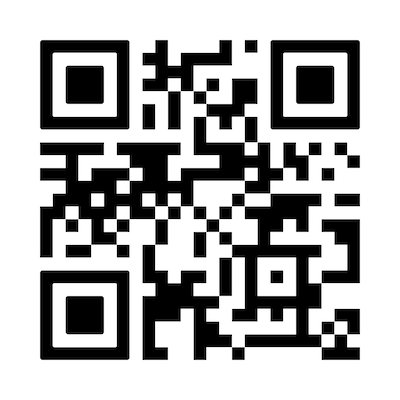
Download the PardaCX app today:


App Store is a service mark of Apple Inc. Google Play is a trademark of Google Inc.
There is no charge to download the PardaCX mobile app. However, data and connectivity fees from your mobile provider may apply. Please contact your mobile service provider for more information. Some features may be available to Parda members only.
Card Controls FAQs
What operating systems are compatible with the PardaCX app?
The latest version of iOS and Android are supported plus two previous versions.
What do I need to enroll?
You need to have the debit card number you want to manage using this app, information about the cardholder, and contact information that will be used to set up your profile.
What accounts can I see and access using this app?
You can see debit card transactions for cards that you have added to your user profile. If you would like to add more card accounts to your user profile, you can swipe left all the way on the Account Summary, and then tap on Add Card.
Why don't I see the account balance for my debit card?
The app only displays debit card transactions on your debit card. Please log into Parda's online or mobile banking app for more information.
Can a secondary or authorized user access their shared account using this app?
Yes. If you have the card number and information about the primary cardholder, you can add the card at the time of enrollment. If you are already enrolled in the app, you can add a card by swiping left all the way on the Account Summary, and then tap on Add Card.
I'm trying to report my card as lost or stolen and I'm getting a message "It looks like you are trying to update your address." Why can't I complete my lost/stolen report in this app?
You are getting this message because you reported that the address we have on file is not correct. We do not want to process the report and then send your replacement card to the wrong address, so we need to update your address first. Please call the phone number provided inside the app.